
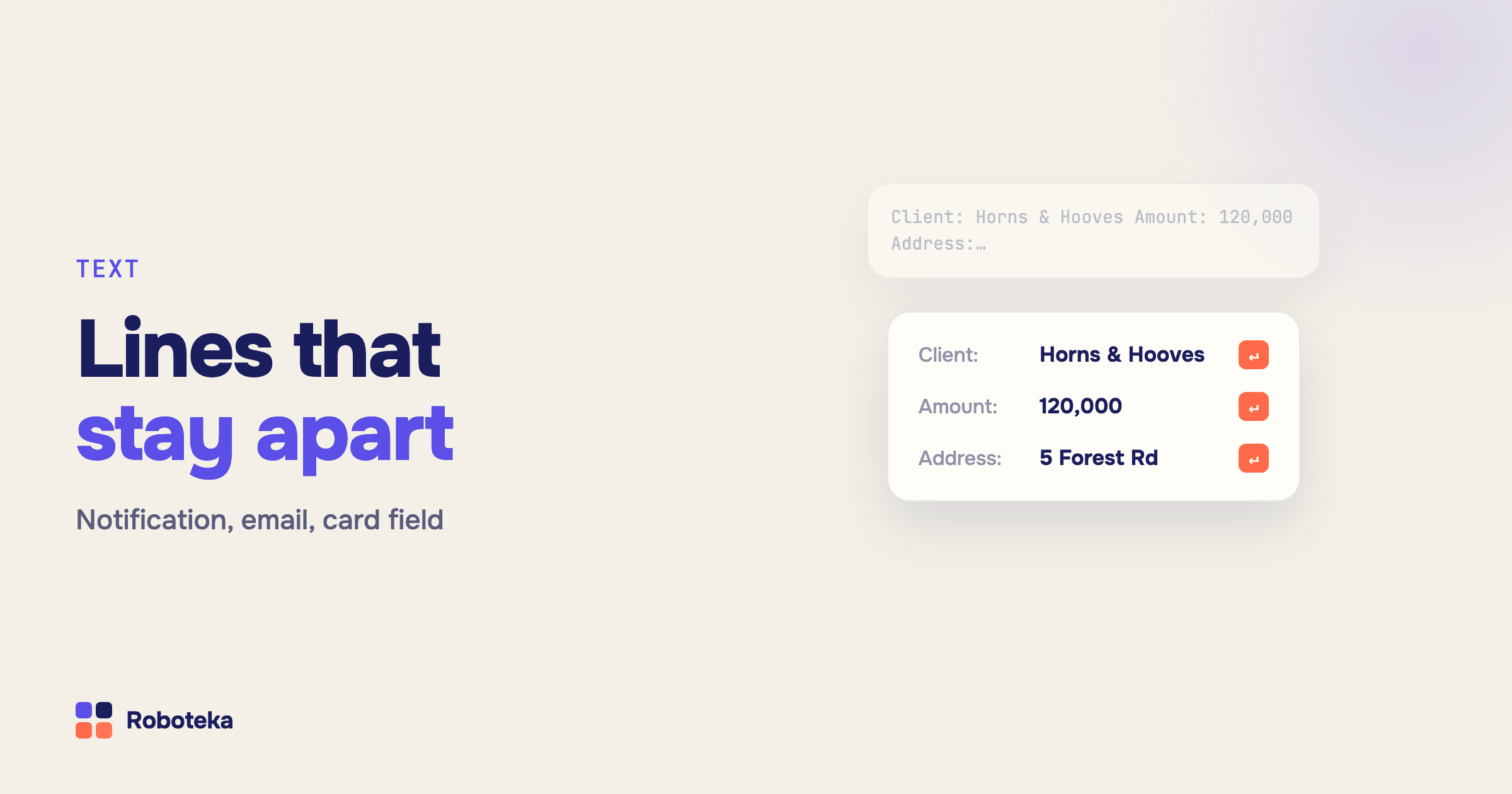
A workflow builds a message from deal fields, and the recipient gets one long line: "Client: Horns & Hooves Ltd Amount: 120,000 Address: …". Or the other way round: a three-paragraph comment from a sales rep lands in an email as a single block. Line breaks are the small detail people trip over most when setting up notifications in Bitrix24 (Alaio). The reason is almost always the same: text goes to different places — chat, email, a card field — and each one treats a line break in its own way.
How to add a line break to a workflow message?
In multi-line action settings — notification text, chat message, comment text — a line break is a plain Enter right in the action settings. Each new line in the settings field becomes a new line in the message. That is the easiest way to build a template: "Client:", the field value, Enter, "Amount:", the field value, Enter.
Notifications and chat messages understand BB codes, so a line break can also be the [BR] code. Use it where Enter does not fit: in a single-line settings field, or when another action assembles the line from pieces. The Notify employees robot also accepts text with BB codes: [B] for bold, [BR] for a line break.
Why do lines run together in an email?
An email is HTML, and HTML does not treat a line break as a break: several lines in a row are shown by the browser and the mail client as one line with spaces. That is why a multi-line comment from a deal field, inserted into an email, arrives as a single paragraph. A line break in an email is the <br> tag.
To turn plain line breaks into <br>, run the text through the Format string by regex robot before sending: pattern /\r?\n/, replacement <br>. The same trick with [BR] as the replacement prepares multi-line text for a notification or chat message that would otherwise come out as one line. How to send email from a workflow in the first place is covered in sending email from a Bitrix24 workflow.
How to remove HTML tags without gluing lines together?
The reverse task: an email body or description arrives with HTML markup, and the card field needs plain text. The Strip HTML tags from text robot removes all tags and can optionally turn & and other HTML entities into regular characters. One detail to keep in mind: it removes the <br> tag but does not put a line break in its place. "Main St 5Springfield" becomes "Main St 5Springfield". If the split matters, first replace <br> with a space, a semicolon or another separator using Format string by regex, then strip the tags.
How to remove extra spaces and non-breaking spaces?
Data from web forms and imports often comes with spaces at the edges or two spaces in a row, and then the string no longer matches in duplicate checks and conditions. The Strip extra spaces robot removes spaces at the start and end of a string and, with the flag on, collapses repeated spaces inside it.
A non-breaking space is a frequent guest in text copied from Word or a website. It looks exactly like a regular space, but for string comparison it is a different character. Replace it with Format string by regex: pattern /\x{00A0}/u, replacement a regular space. The opposite case, when you need a non-breaking space in an email so that "120,000 USD" does not wrap across lines, is solved with the entity in the email text.
How to remove specific characters from a string?
For a simple replacement without regular expressions there is the Replace substring robot: what to find, what to replace it with, and an empty replacement means "delete". That is how dashes are removed from a contract number, quotes from a title, or thousand separators from an amount. The robot returns the result and the number of replacements made, so a zero tells you the character was not in the string at all. When there are many characters or you need a pattern — "remove everything except digits" — use Format string by regex with the pattern /\D/ and an empty replacement. More pattern examples are in regular expressions in Bitrix24.
How to convert text to lower or upper case?
The Change string case robot turns a string into one of four forms: all caps, all lower case, every word capitalised, or sentence case. Lower case matters before comparison: emails and company names should be compared in one case, otherwise "Info@Company.com" and "info@company.com" count as different. "Every word capitalised" tidies up names typed any old way: "john smith" becomes "John Smith".
What next
If a string needs to be taken apart rather than formatted — split by a separator, joined from a list, cut — those are different robots, described in strings in workflows. All text robots are in the catalog. And if the one you need is missing, describe the task: Roboteka builds missing activities for free and adds them to the shared library.