The "Dismiss" button in Bitrix24 (Alaio) takes away the employee's access to the portal and nothing else: their deals, tasks, observer roles and webhooks stay with them. The stock handover tools exist, but they are scattered, manual and do not cover every role. This article walks through what stays with the leaver, how to hand it over with the stock tools, and where robots are the only way: related CRM records, co-assignees and observers in tasks, integrations running on the leaver's token, and automation rules with an "employee is active" assumption built in.
What happens on dismissal, and what is left hanging?
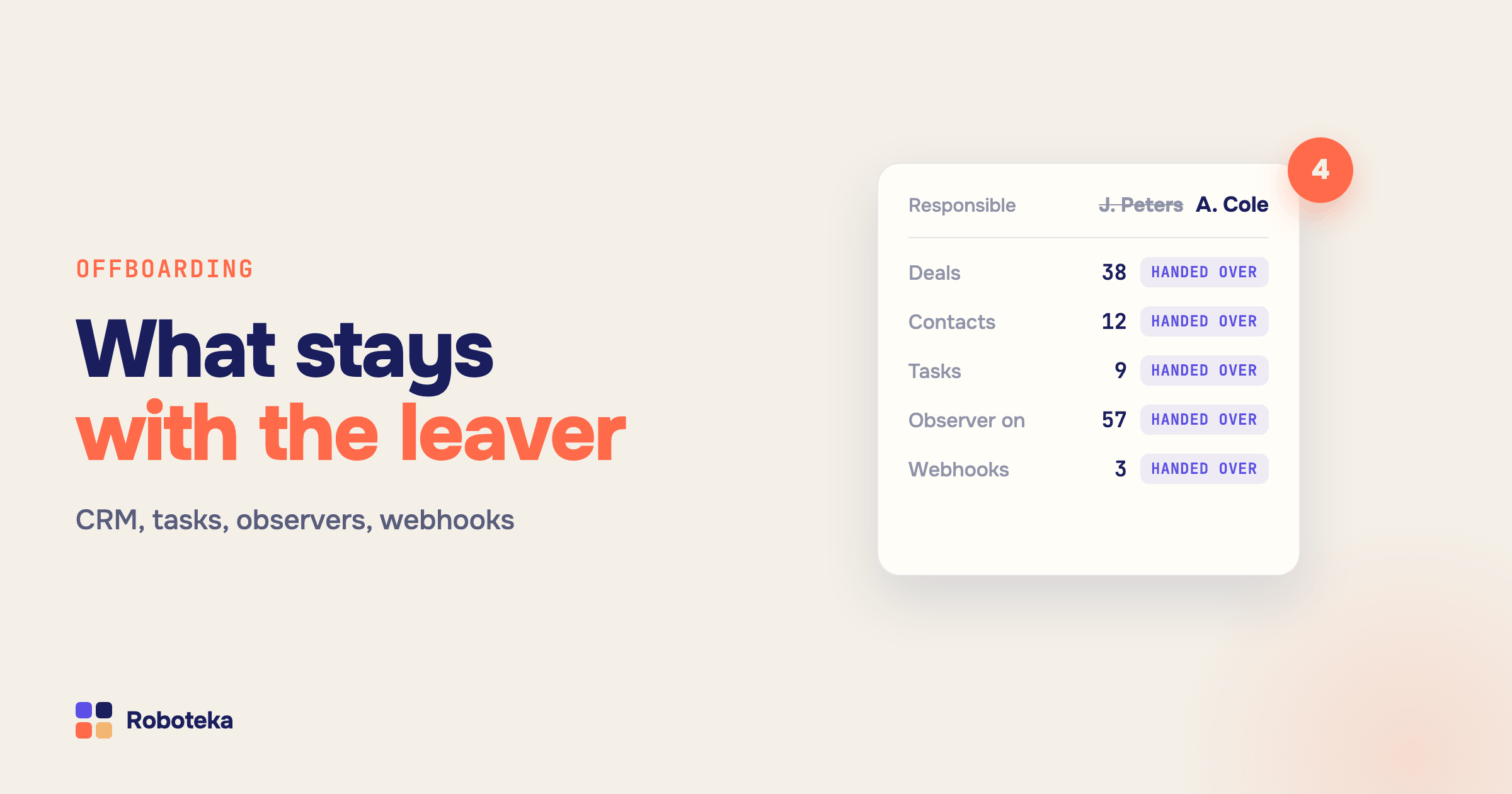
Dismissal is done by an administrator or by an employee with the "Dismiss employees" permission in the company structure: "Dismiss" in the employee list menu, or "Actions → Dismiss" in the profile. The employee loses access but is not deleted: tasks, messages and files are kept, and the profile moves to the "Dismissed" tab, hidden from the list by default. If the employee had active integrations, the portal asks whether to disable or keep them — more on that below. Everything else stays as it was: the leaver is still the responsible person on deals and contacts, assignee and creator on tasks, observer on cards, member of chats and groups. Automation rules and workflows that assign them tasks or send them notifications keep doing it — into the void. So offboarding in Bitrix24 is not a button but a checklist across four areas: CRM, tasks, integrations, automation.
How do I hand over deals, leads, contacts and companies?
The stock route is a bulk action in the list: the CRM section, "List" view, the "Responsible person" filter (for a leaver, the "Dismissed" tab in the employee picker), tick the cards, "Select action → Change responsible person"; the "For all" checkbox applies the action across every page of the selection. This works for leads, deals, contacts, companies, estimates and activities; invoices are handed over one at a time from the invoice card, and if the employee is already dismissed they have to be temporarily "Hired" again. Hand over closed records too: calls and notifications when the work resumes then reach the new responsible person. The weak spot of the bulk action is that it knows nothing about relations: you hand over the companies, and their contacts and deals stay with the leaver. The Change responsible on related robot closes exactly that gap: run on a company, it reassigns its deals or contacts; on a contact — its deals or companies; up to 500 records per run. If the base should be split across a team rather than given to one successor, the Assign responsible: queue / workload robot picks the next person in turn or the least loaded one; a mass launch filtered by "Responsible person" starts the workflow on every deal of the leaver at once. Manual, bulk and automatic reassignment in detail — in the article on changing the responsible person.
How do I hand over tasks: assignee, creator, co-assignees and observers?
A leaver's tasks are reassigned by an administrator: the employee profile → "Tasks" tab → a filter such as "In progress" → tick the tasks or "For all" → "Select action" → "Change assignee" or "Change creator". A supervisor can reassign the tasks of their direct reports, but only those where they are the creator or the assignee. Two roles the stock handover does not touch: co-assignees (participants) and observers. The leaver stays a co-assignee on dozens of tasks and an observer on hundreds, and each of them keeps waiting for a reaction that never comes. From a workflow this is fixed in one pass: Update task by ID rewrites the ACCOMPLICES and AUDITORS fields with a list of user IDs, Change task observers removes one observer without touching the rest, and Change task creator moves the creator role to the successor where the bulk action is not available. Who is who in a task and how to manage these roles automatically — in the article on observers and co-assignees.
What about the leaver's webhooks and integrations?
A webhook runs its requests with the permissions of the employee who created it, and its secret code is visible only to that employee. So "outgoing webhooks stopped working after the employee left" is not a glitch but a direct consequence. On dismissal the portal offers a choice: "Disable integrations" — the webhooks stop; "Keep integrations" — they move to a system user, a copy of the leaver, and keep working. The second option is convenient, but the portal itself warns that access to the data through those webhooks remains, and anyone who has the link can use it. The sane order: before the dismissal, list which integrations, sites and services go through this person's webhooks, recreate them under a dedicated service account with minimal permissions, and only then dismiss with integrations disabled. If the dismissal has already happened and something broke, first troubleshoot the webhook; then an administrator can edit another user's webhook — the secret code is regenerated and the administrator becomes the owner. How webhooks work in general — in the overview article.
How do I remove the leaver from CRM observers and from automation rules?
On deal, lead, contact and company cards the observer is a separate field, and dismissal does not clear it. The Manage observers robot in "Remove" mode takes the employee off the current card; started in bulk by a filter, it sweeps the whole base. The second invisible trace is the employee inside automation settings: a "Task for employee" rule with their name, a notification addressed to them, an approver in a workflow, a fallback responsible person in lead distribution. There is no stock report "where is this person named in automation rules", so go through pipelines and templates by hand: filter by surname in the rule list of every stage and in the parameters of workflow templates. To keep such a tail from forming, do not write people into rules by name: take the addressee from the structure — Get employee manager returns the current manager of the responsible person, not whoever was the manager six months ago.
How do I build a rule with an "employee is dismissed" condition?
A common request: the rule should notice that the responsible person has been dismissed and reassign the deal or stop assigning them tasks. Stock rule conditions check the fields of the card, and an employee's active flag is not a card field, so there is no such condition directly, and the leaver's deals keep moving through the pipeline like any other. The practical answer is not to catch this state but to prevent it: hand over CRM and tasks on the day of dismissal by the steps above, and route later leads not to a named person but to the department queue via lead distribution. An "Is employee active?" robot — takes an ID, returns Y/N and the manager's ID — is not in the Roboteka library yet; this is exactly the case the library grows for: describe the task, we build it for free and add it to the shared catalog.
Offboarding checklist for Bitrix24
Before pressing "Dismiss": the list of the employee's integrations and webhooks, replaced with a service account; handover of the mailbox and the contact email. On the day: CRM — bulk from the list with "For all", then the robot for related records; invoices — one by one; tasks — assignee and creator from the profile, co-assignees and observers — by robot; CRM observers — by robot; "Disable integrations" in the dismissal dialog. Afterwards: a pass through rules and workflow templates naming the leaver, and a check of the successor's access permissions — otherwise they receive deals they cannot see. The easiest way to keep this together is one "Offboarding" workflow on an HR smart process, where the employee and the successor are fields of the item and the steps are the robots above.
Bottom line
Offboarding in Bitrix24 is four areas, not one button. CRM is handed over from the list; related records — by the Change responsible on related robot, or across a department via Assign responsible: queue / workload; tasks — assignee and creator with the stock action, co-assignees and observers via Update task by ID and Change task observers; CRM observers — Manage observers; webhooks — recreated under a service account before the dismissal. All robots are in the Roboteka catalog, free from the Bitrix24 Market. Missing a robot for your offboarding step — describe the task, we build it for free.