
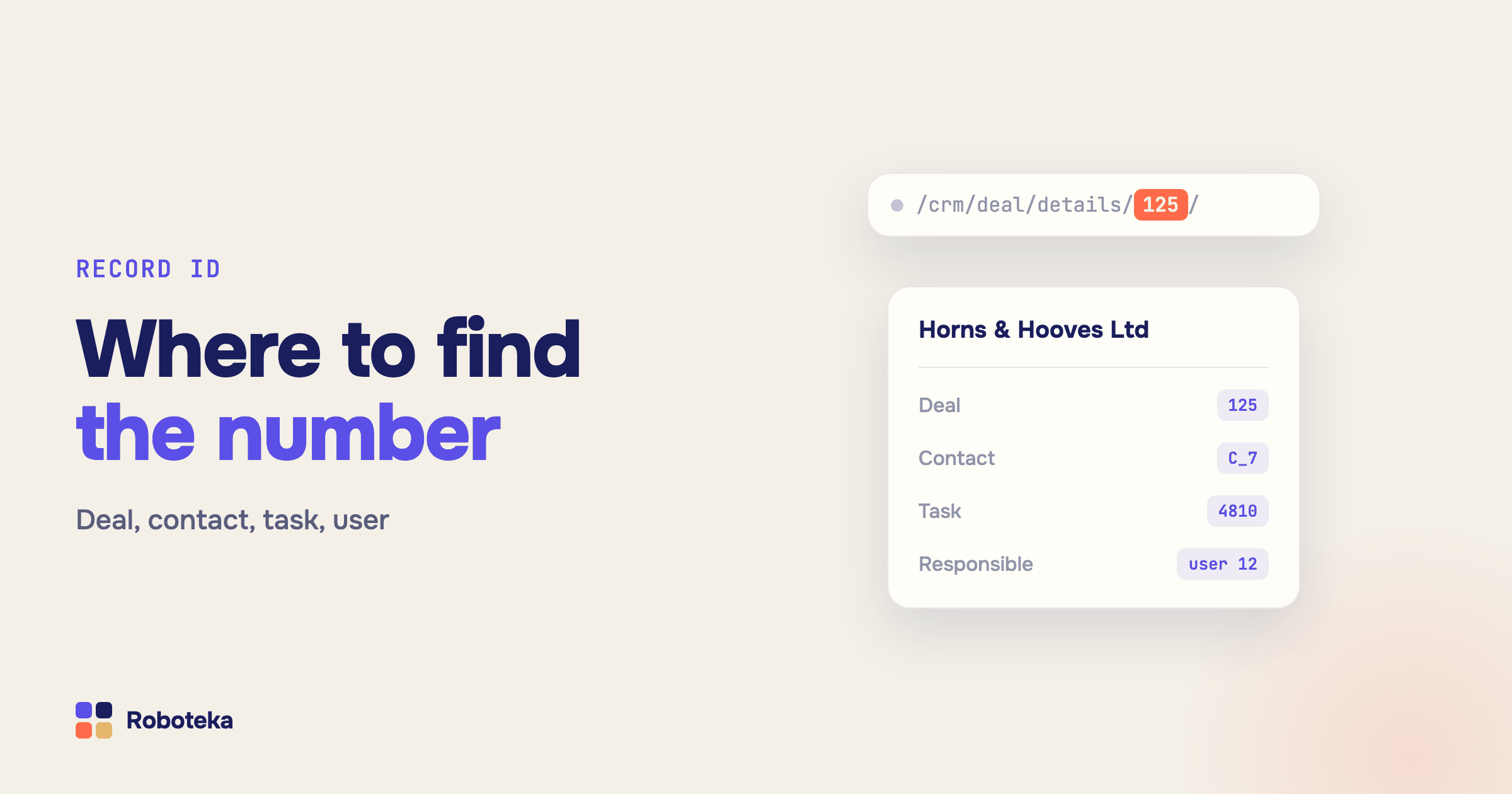
Every record in Bitrix24 (Alaio) has an ID: an internal number assigned when the record is created and never changed after that. You can rename a deal or retype a contact's name, and the ID stays the same. That is why records find each other by ID: an automation rule updates a deal by its ID, a task is linked to a company by ID, a REST API call or webhook reads a contact by ID. While you work by hand, you never need the number. Once workflows and integrations enter the picture, you need it everywhere.
What is an ID in Bitrix24?
A whole number, unique within its own record type. Deal 125 and contact 125 are two different records, because deals and contacts are numbered separately. That is the main source of confusion: the number alone does not say what it points to, so the type has to be known or stated next to it. The second source of confusion is field codes such as TITLE or UF_CRM_1712…: those identify fields, not records, and have their own article — field IDs in Bitrix24.
How to find a deal, lead, contact or company ID?
The quickest way is the browser address bar. Open the record and the number is in the link:
- deal —
/crm/deal/details/125/; - lead —
/crm/lead/details/125/; - contact —
/crm/contact/details/125/; - company —
/crm/company/details/125/; - smart process item —
/crm/type/<type ID>/details/125/, where the first number is the smart process itself and the second is the item.
When you need IDs for many records at once, switch the section to list view and turn on the ID column in the column settings. You can sort and filter by it and export it to Excel along with other fields — the usual way to build a mapping table for an import or a reconciliation with an accounting system.
Where is the task ID?
Also in the address: an open task's link ends with /tasks/task/view/<ID>/. In the task list, the ID column is enabled the same way as in CRM. Tasks are numbered separately from CRM, so task 125 has nothing to do with deal 125.
How to find your own user ID or a colleague's?
Open the employee's profile: the address contains /company/personal/user/<ID>/. Your own ID is in your own profile, found the same way. User IDs come up more often than you would expect: in filters by responsible person, in workflow conditions, in REST requests like "all deals of this sales rep". A department ID is harder, because the company structure screen does not display it. Inside a workflow, the Get employee department robot returns it: input an employee ID, get back the department ID and name, plus all departments if the person belongs to several.
How to find a pipeline ID and a stage ID?
The pipeline ID is in the address of the deal kanban: /crm/deal/kanban/category/<ID>/. The default pipeline has ID 0. Stages use text codes, not numbers: in the default pipeline they are NEW, WON, LOSE and so on; in additional pipelines they carry the pipeline prefix, for example C1:NEW or C1:WON. In automation rules you usually pick a stage from a list and never type the code. You need it in filters, REST requests and search robots where the stage is given as text. More on how pipelines work — in the sales pipelines article.
What is a CRM ID like D_10?
When a field or link can point to records of different types, a bare number is not enough. A type prefix is added: D_10 is deal 10, C_7 is contact 7, CO_5 is company 5, L_4 is lead 4. This format is used by task-to-CRM links and by "CRM item link" fields that allow more than one type. For task links the prefix must be the short one: a task will store DEAL_10, but it will not appear on the deal card. To avoid building the string by hand, the Task CRM binding (by ID) robot takes the record type and two numbers — the task ID and the deal or contact ID — and adds, replaces or removes the link in the right format.
How to get an ID inside an automation rule or workflow?
A workflow always knows the ID of its current record. In a robot or action, click "Insert value" and pick the document's ID field; in the workflow designer it is the expression {=Document:ID}. Pass it on: into a notification text, a link, a field on another record.
It gets harder when you need the ID of another record: a contact by phone number, a client's open deal, a task by title. That is what search robots are for. Find contact by phone or email returns the first match's ID and a Found flag. Find deal by condition searches by contact, company, stage, responsible person or any custom filter and returns the first deal's ID, the list of all IDs, and the count. Find task by condition does the same for tasks. The full walkthrough is in how to find a deal, contact or lead from a workflow.
What to do with the ID once you have it?
Hand it to the next steps. The Get field value from a related entity robot takes a deal, contact, company or lead ID and reads any field of that record — the amount of the client's last deal, say, or the company email. A condition on Found = Y splits the workflow: the record exists, update it; it does not, create a new one, and no duplicates appear. If the ID is needed in several steps, keep it in a workflow variable.
What next
If you need an ID once, read it from the address bar. If a workflow needs it, do not type it into the template: find the record with a robot and pass the ID on in a variable, so the template survives a new responsible person and a new pipeline alike. The other building blocks are in the robot catalog. And if the robot you need is missing, describe the task: Roboteka builds missing activities for free and adds them to the shared library.