
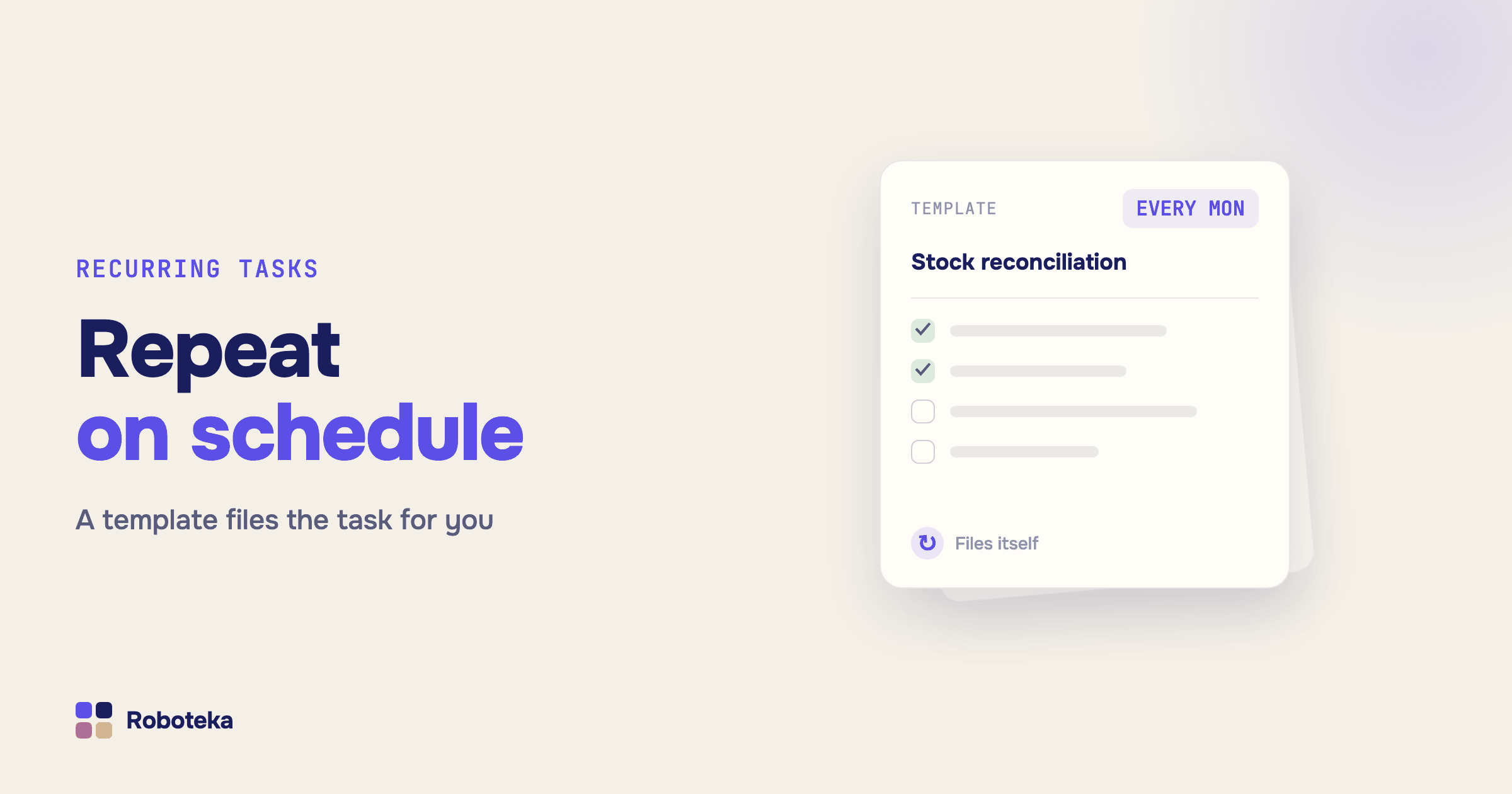
Someone reconciles stock every week, accounting collects closing documents every month, and every Monday a team lead files the same assignment with the same checklist. Three such jobs fit in your head. Thirty do not: the task gets filed late, the checklist is remembered halfway through, and the urgent half surfaces after the deadline. Bitrix24 (Alaio) has two mechanisms for this — task templates and recurrence — and they get confused more often than they get configured.
Where do task templates live and what goes into one?
Templates sit in Tasks and Projects → More → Templates. There are three ways to make one: from scratch with the Create button, from the Templates block while filing a new task, and from an existing task through its menu. The third is the fastest route when a good task has already been written by hand.
Almost the whole card goes into a template: title and description, assignee, participants and observers, deadline, checklist, files, project or group, CRM binding, time tracking, and subtasks. The point is that a task arrives already assembled — nobody has to ask what exactly to check and in what order. The checklist earns its place here more than anything else: it turns a vague "prepare the report" into six verifiable items, and later it shows exactly where the work stalled.
How do you make a task recurring?
Recurrence is a schedule layered on top of a template. You can switch it on from the task card (the Recurring task option at the bottom) or inside the template itself. The first route is more convenient, but it helps to know what happens underneath: when you make a task recurring, Bitrix24 creates a template for it and stores the schedule there. There is no separate "repeating task" entity in the system — there is a template with a schedule.
Four repeat intervals are available: day, week (with specific weekdays), month (by date or by weekday, so "every second Friday" is native), and year. Day, week and month also take a step, which is how "every two weeks" is configured. On top of that you set the start date of the repeats, the time of day the new task is created, and how the series ends: on a date, after N repeats, or never. Daily repeats have their own switch for whether tasks appear on weekends and holidays or skip them.
Template or a copied task — which one?
Copying is a one-off: duplicate the task, adjust the title, file it. It wins when a similar job comes round once a quarter and is slightly different every time. A template wins when the job is standard and several people file it: an edit to the template changes every future task at once, while an edit to a copy changes only the next copy. The flip side of that rule matters just as much — template edits do not touch tasks that already exist. If a recurring task has been filed and someone is already working on it, a new checklist will not arrive there.
Every task the schedule has produced is listed in the template's own History section. That is the first place to look when the schedule seems to be misbehaving.
Why did the recurring task not appear?
Work down this list — nine times out of ten the answer is in the first three items.
Recurrence is switched off in the template, or the template itself was deleted; this is the most common cause by a wide margin. Next: the start date has not arrived yet, or the end condition has already fired — the date passed, or the N repeats ran out. Then check the assignee: a deactivated account has nobody to file the task on. Monthly schedules pinned to the 29th, 30th or 31st behave unlike expectations in short months, so when a task has to land at the end of every month, a weekday rule is safer than a date. Finally, recurring tasks are not on every plan, and where the plan does not include them the option simply is not shown — a limit, not a fault.
Check permissions too: the schedule can be changed by the template's author, an administrator, and staff with the matching access rights, so "I edited it and nothing changed" sometimes means the edit was never saved. It is the same shape of problem as in access permissions and automation: the mechanism is fine, but it is acting as someone who lacks the rights.
What a template cannot do, and how to cover the gap
A template is static. It cannot calculate, branch, or look at data: the deadline is a fixed offset in days, the assignee is one named person, the text is one fixed string. The moment a repeating job depends on anything else, the built-in schedule runs out of road.
The missing part is built with a workflow and blocks from the Roboteka catalog — the same toolbox covered in robots in Bitrix24 tasks. The Find task by condition robot locates the task the schedule has just produced, and Update task by ID then edits it — a real deadline, an assignee taken from the deal, an extra line of context. To make the task live in the client's card instead of floating on its own, Task CRM binding attaches it to the CRM record. To space steps out inside one process, Short pause waits between them — file the task, hold, then check the outcome; the longer forms of the same idea are covered in delays and pauses in automation. And when the checklist itself depends on the data, Add checklist to task builds it at run time rather than freezing it into the template.
If tasks appear on schedule but nothing happens afterwards, the problem is usually the workflow rather than the schedule — automation not running walks through that diagnosis.
What next
Start with the single task your team files most often: save it as a template, get the checklist to the point where it needs no explanation, and only then switch the schedule on. Come back in a month and open the template's History — the repeats nobody ever closes stand out immediately, and those are better removed than tolerated. The wider picture of what a process can do around tasks is in the workflow automation guide and in automation examples; the blocks themselves live in the robot catalog. If the one you need is missing, describe the job — Roboteka builds missing activities for free and ships them to the shared library.