Sooner or later every automation project runs into the same wall. You build a rule that has to tell a person something, you open the list of recipients, and the chat you actually need is not there. The message lands in the notification feed, the assignee never opens it, and the team goes back to typing the same sentence by hand every day. This article is about what an automation rule can and cannot do with chats in Bitrix24 (Alaio), and how to close the gaps that are left.
What kinds of chats exist on a portal
Four things share one list in the messenger, and they behave differently. A private chat is a one-to-one conversation, created the moment you write to someone. A group chat is what you build by hand for a department, a project, or a one-off effort such as a tender. A channel is a group chat with one-way broadcasting: a few people write, everyone reads. And then there are service chats the portal creates on its own — the chat of a task, the chat of a workgroup or project, and the chat of a customer conversation coming from a messenger or the website widget.
That last kind follows entirely different rules — the queue, the operator distribution, and the link to a CRM card. Those are covered in the guide on Open Channels; everything below is about internal chats.
Why an automation rule cannot write into a task chat
The standard action sends a message to an employee or into a group chat, and for most alerts that is enough — which channel fits which event is covered in the article on notifications from business processes. But the task discussion is not on the list of possible recipients, and no amount of configuration puts it there.
That hurts because the task chat is exactly where people look. A comment in the task is read; a line in the notification feed is dismissed with everything else. So the most valuable message an automation rule can produce — "the priority changed", "the invoice is attached", "the customer replied" — ends up in the least-read place on the portal.
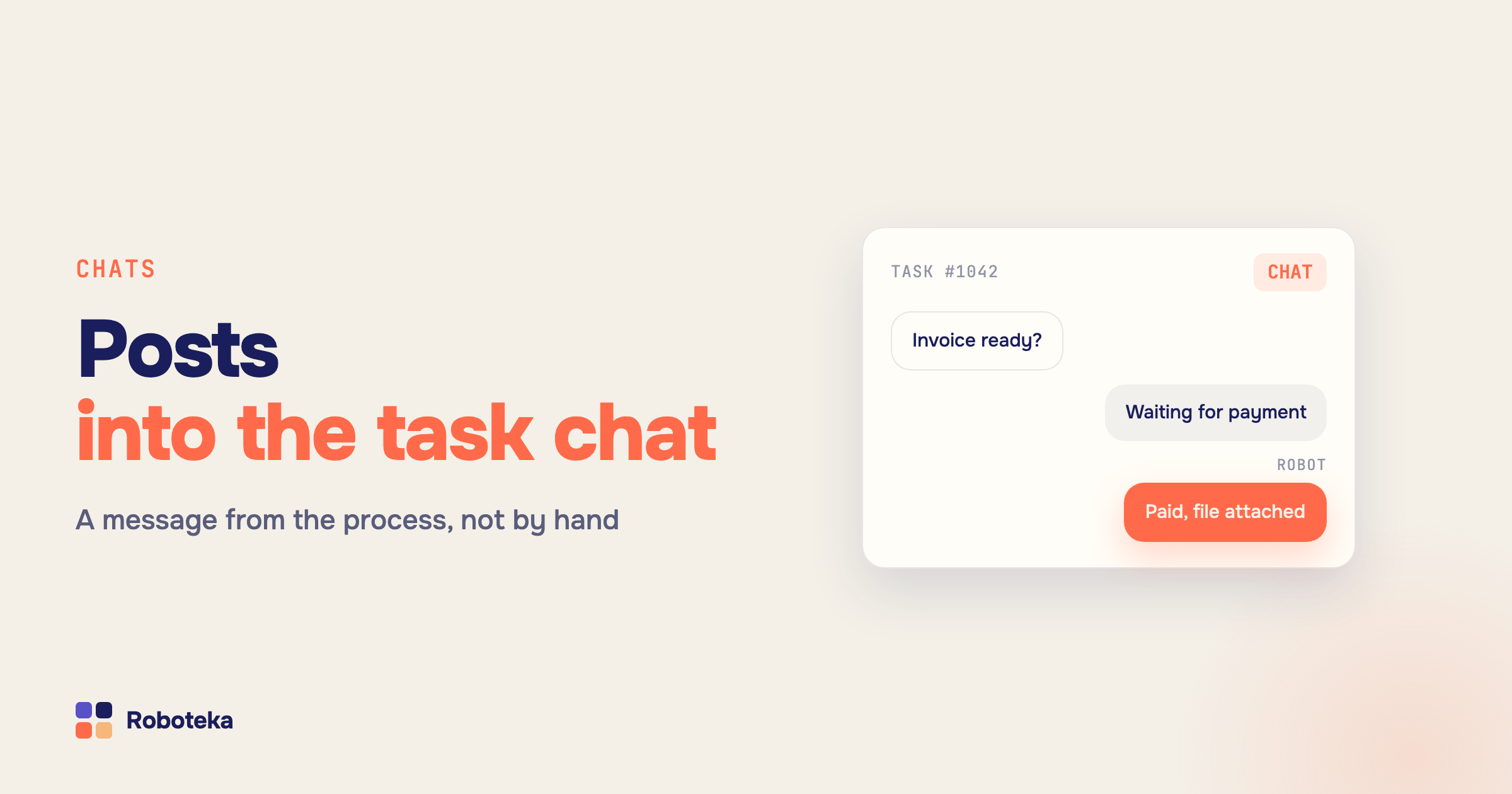
The Message to task chat robot puts it where it belongs: you give it the task ID, the text, and optionally a list of Drive file IDs, and the message appears in the discussion with its attachments. Typical uses: a deal process tells the assignee that the priority changed; accounting drops the invoice straight into the task instead of explaining where it sits on the Drive; an approval process records who signed off and when.
The task chat is the comment feed
A useful thing to know before you automate anything around it: the task chat and the task comments are the same stream. What you write in the discussion is a chat message, and what the chat receives shows up as a comment. Participants are the creator, the assignee, the participants and the observers — adding a participant adds them to the conversation too.
Service entries live in that same stream: "created the task", "changed the deadline", "completed the task". They sit next to real comments, which matters the moment automation starts reading the feed — more on that below.
Where to get a chat ID
The interface never shows the identifier of a chat, not in the task card and not in the chat itself. Any work with a conversation from outside starts with it: sending a message through the API, exporting the discussion, wiring the chat into another system. Messenger methods also want a specific shape — not a bare number, but a string like chat123.
The Task chat ID robot hands it over inside a process: the task ID goes in, the numeric identifier, the ready chatXXX dialog string, and a "chat found" flag come out. From there the identifier travels wherever you need it — into the next robot, into an HTTP request to an external system, or into a log.
Reading a conversation back into the process
Writing is half the job; a process that reacts to what people say is worth more. The Last task comment robot returns the text, the author and the date of the latest comment, and skips the service entries by default — so "completed the task" never gets mistaken for a human answer. Hang a condition on it and silence becomes a signal: no comment for three days means escalate, a new comment means the process moves on. How to build those branches is covered in the article on the "if — then" condition.
In the CRM the same job belongs to Get item comments, which reads timeline comments of a deal, a lead or a smart process item and returns them as a single string, as a list to loop over, and as JSON. And when a customer conversation ends up on the wrong card — a chat created a lead, the lead was converted, the history stayed behind — the Link Open Channel conversation robot moves it to the entity the team actually works in.
When you really need a chatbot
A chatbot in Bitrix24 is an external application registered on the portal over REST: it appears in the contact list, receives events about messages, and answers under its own name. That is how support bots, survey bots and helper bots that open a request straight from the conversation are built.
The price is development. A bot lives on your server, not on the portal, and it needs an event handler, permissions and ongoing maintenance. So before commissioning one, check whether the job is a bot at all. "A bot that writes into a chat when the deal reaches a stage" is not a bot, it is an ordinary automation rule. "A bot that posts a morning summary of open tasks" is not one either. A bot is justified where a human holds a conversation with it — asks questions and gets answers in a dialog. Everything else is a message from a process, and it takes no code.
Keeping the noise down
The more automation writes into chats, the faster people stop reading them. Do not duplicate: if an event already became a task, it does not also need a chat message. Do not report the normal, only the deviation — "process started" helps nobody, "no reply for three days" does. And silence noisy tasks one at a time: the Task Mute mode robot turns notifications off for a single task without touching the rest, which is what long-running background tasks with constant chatter need.
If messages stop arriving altogether, the problem is usually upstream of the chat — the rule never ran. The checklist for that case is in the article on an automation rule that did not run.
What to do next
Start with the sentence your team types by hand most often, and let a process write it into the task chat instead. Then add the reverse direction: a condition on the last comment turns "it is just sitting there" into an escalation with a name and a deadline. The wider picture of building processes is in the guide on workflow automation in Bitrix24, the task-specific parts in the articles on robots in tasks and task fields, and the building blocks themselves in the robot catalog. If the one you need is missing, describe the task — Roboteka builds missing activities for free and publishes them into the shared library.